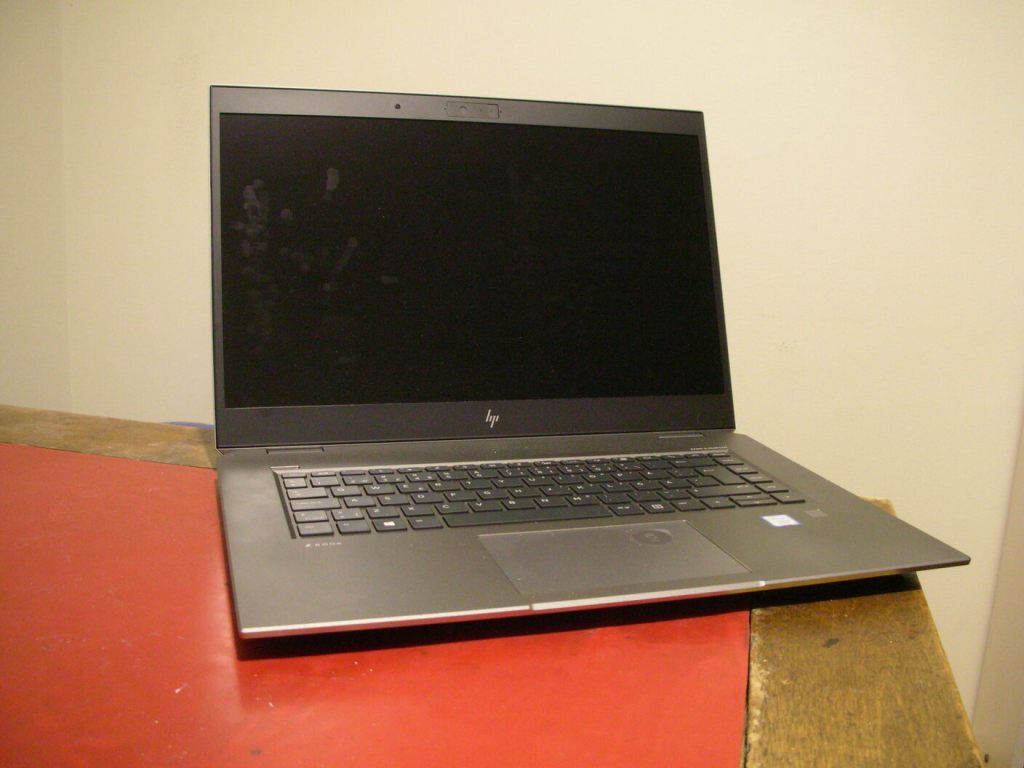
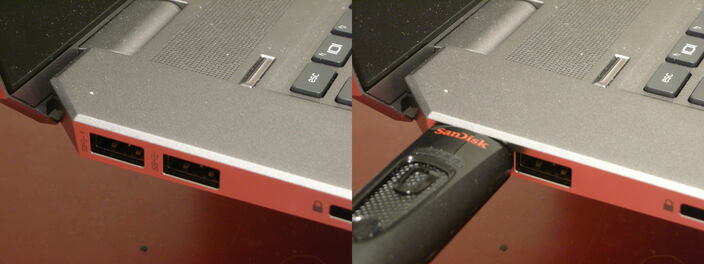
I just bought a new laptop. It features 15.6 inch display, good keyboard, and plenty of processing power. The machine has two USB-A 3.0 type ports and two USB-C ports. However, the USB-A 3.0 ports are too close to each other, so if you plug in an even slightly larger USB memory stick for instance, the other USB-A port becomes unusable.
The machine came with Windows 10 preinstalled, and I installed Ubuntu 19.10 alongside it. I followed the instructions in https://www.tecmint.com/install-ubuntu-alongside-with-windows-dual-boot to decrease the size of the Windows partition and to install Ubuntu. I chose not to allow third-party software.
Therefore, it didn’t install the native Nvidia driver for my Quadro P1000 GPU, but instead used the open source Nouveau driver. This causes much instability, and often the machine locked up already when trying to log in. When trying to load a driver from Nvidia web page, it instructed the use the Nvidia driver from Ubuntu distribution instead. I selected the driver version 435.21. Because my machine uses secure boot, I had to sign the driver (other option would have been to disable secure boot). I created a temporary password, and when booting the machine, I selected the enroll MOK (Machine Owner Key) and gave my temporary password. Then the machine seemed stable and the GPU acceleration worked, for instance, with the Tensorflow library.
Nvidia provides the VDPAU library for hardware accelerated video decoding, and Intel and AMD use the VA-API for decoding. The VDPAU seems to work at least in VLC, mplayer, and mpv, although mplayer support seems to be a bit buggy and does not work out-of-box. Try command line options -vo vdpau and -vc ffh264vdpau,ffmpeg12vdpau,ffwmv3vdpau,ffvc1vdpau, or put them in .mplayer/config file, to get mplayer at least partially working. Firefox, however, does not support hardware acceleration at all.
But the troubles were not over yet. In the Firefox browser there seemed to be horizontal tearing when scrolling a page or when watching YouTube videos. Based on a Google search, this seemed to be a common problem with Linux. I fixed it (or at least got rid of most of the symptoms) using the following procedure. I created the file /etc/modprobe.d/zz-nvidia-modeset.conf and added there the line options nvidia_drm modeset=1. Then I ran the command
update-initramfs -u
and rebooted the machine. Tearing was gone! The previous operations allowed the Nvidia driver to do the setting of video mode, instead of letting Xorg to do it. If all was done correctly, the following command should output Y:
cat /sys/module/nvidia_drm/parameters/modeset
What still does not work is controlling the brightness of the display. Pressing fn+f3/f4 toggles microphone on/off instead of decreasing/increasing brightness. They work in Windows, so this is a Linux specific problem. And a very persistent one, since there has been a constant flow of bug reports from the last eight years at least. For some reason the keys fn+f3/f4/f8 all send the scan code E0 01 when the key was pressed. However, for me it was possible adjust the brightness from under the power controls using mouse, so this is not such a big problem. I can also choose different keys for brightness control from system settings -> keyboard -> short cuts -> system -> hardware, at least in Cinnamon. I chose the pick up phone and hang up phone keys.
Then later I read somewhere that performing a power reset could solve this problem. Essentially, turn the laptop off, remove all cables, and then press and hold down the power button for 15 seconds. Then turn the computer on and reconnect the cables. After this operation the brightness buttons started working. Now they produce the scancodes e0 12 (decrease) and e0 17 (increase):
By the way, you can select from BIOS whether the keys f1-f12 produce the function keys and fn key combined with f1-f12 produce the hotkeys (like adjusting volume or brightness), or vice versa.
The final problem was when changing between virtual consoles the input devices in X seemed to die, although they still worked in the gdm3 login screen. This problem was solved by changing the display manager from gdm3 to lightdm using the command sudo dpkg-reconfigure lightdm.
 Thoughts from the bottom of a well