I sometimes use my external MIDI keyboard and Qsynth to play some music. I got it working, but it wasn’t trivial. An additional problem is created because using MIDI on Linux requires using Jack, which does not work together with PulseAudio. It would be nice to listen to music, for example, from YouTube and to play on top of it using the MIDI keyboard. Normally Firefox uses PulseAudio to play music, therefore this does not work. The Mplayer music player allows Jack output, so this can be used for background music. But this still requires turning Jack off after I’m finished with MIDI stuff and want to continue with normal use (Firefox etc).
The new PipeWire system aims to combine the properties of PulseAudio and Jack, which would make the audio use on Linux much easier. It also provides compatibility layers for PulseAudio and Jack, so the old applications should work automatically. Since PipeWire is quite new and still under active development, there isn’t an automatic support for it in Ubuntu 20.04. But there is a PPA which provides up-to-date PipeWire packages, for Ubuntu 18.04 and above. I set PipeWire up using these instructions.
It started to work immediately on the usual applications with no problems, but when I tried to use the MIDI keyboard and Qsynth, the applications (Firefox, qjackctl, Qsynth) froze and had to be restarted. Some even had to be killed with the kill -9 command. In more detail, the Qsynth reported the following error: fluidsynth: error: Help! Lost the connection to the JACK server. And in the /var/log/syslog I got the following messages:
Jul 17 14:35:27 barrett pipewire-media-session[2737]: error id:0 seq:16594 res:-32 (Broken pipe): connection error
Jul 17 14:35:27 barrett systemd[2728]: pipewire.service: Main process exited, code=killed, status=9/KILL
Jul 17 14:35:27 barrett systemd[2728]: pipewire.service: Failed with result 'signal'.
And after this the pipewire.service got restarted automatically, but it wasn’t working until I restarted all the needed applications. By the way, the following command can be useful in checking what services are running, and when they were started: ps -O start $(pgrep "jack|synth|pipe|pulse")
On my functioning system it gives the following output:
ps -O start $(pgrep "jack|synth|pipe|pulse")
    PID  STARTED S TTY          TIME COMMAND
   2738 08:57:07 S ?        00:12:05 /usr/bin/pipewire-pulse
   7769 11:15:11 S ?        00:00:06 /usr/bin/jackdbus auto
  13883 15:04:30 S ?        00:10:14 /usr/bin/pipewire
  13884 15:04:30 S ?        00:00:00 /usr/bin/pipewire-media-session
  14839 15:11:09 S ?        00:02:26 qjackctl
  14848 15:11:18 S ?        00:02:39 jack-keyboard
  14858 15:12:05 S pts/1    00:04:17 jack_midi_dump
  14862 15:12:38 S ?        00:02:09 qsynth
The applications which try to use PulseAudio will actually use pipewire-pulse and Jack application will use jackdbus, which will get started automatically by qjackctl.
I will now advance step-by-step to make sure MIDI input works, and then I will check that the sound synthesis will work. And I will show the settings of relevant applications.
I use the jack-keyboard program to emulate a MIDI keyboard, so that I can generate MIDI commands. To monitor these MIDI commands, I will use the jack_midi_dump program. First however, start the qjackctl program, and check that the settings are as in the following figures.
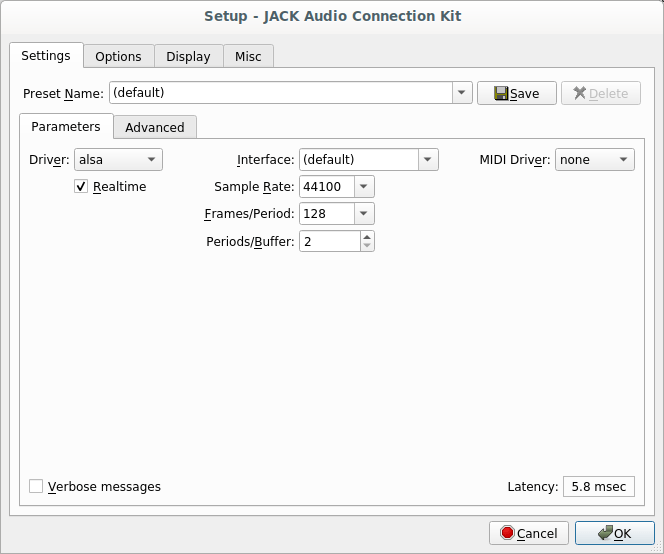
In the below figure, note that I have disabled the “Execute script after Startup” command. It was needed previously to map ALSA style MIDI to Jack MIDI using a2jmidid. But now PipeWire does this automatically, so the setting is simpler.
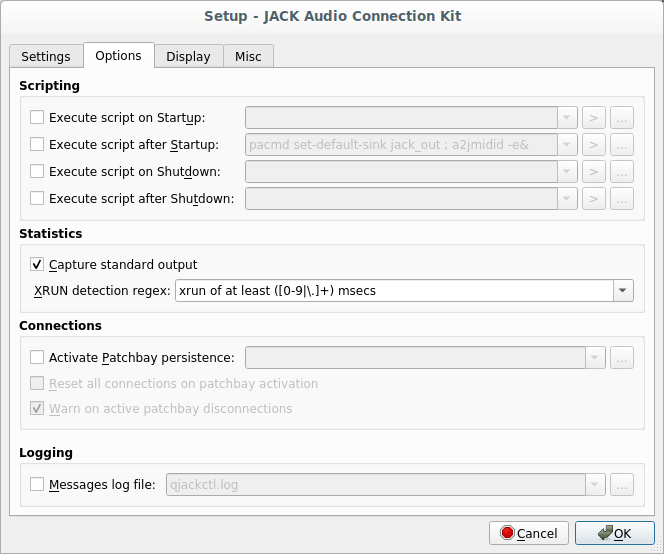
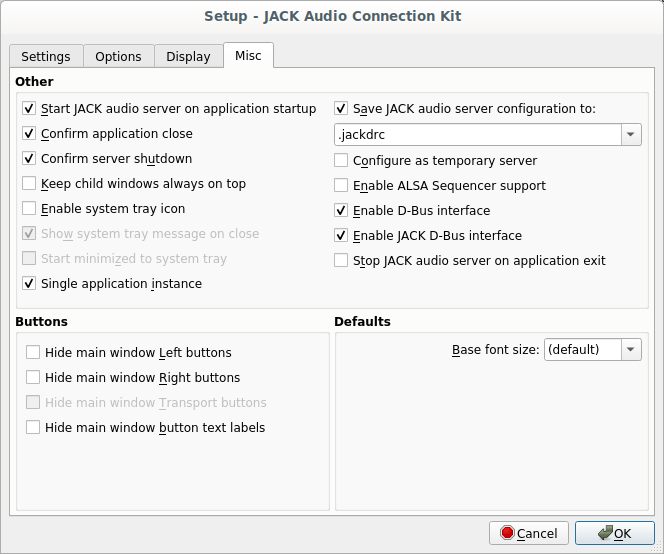
After the qjackctl settings are correct, start the jack-keyboard and jack_midi_dump (a command line program), and make the following connection in the qjackctl:
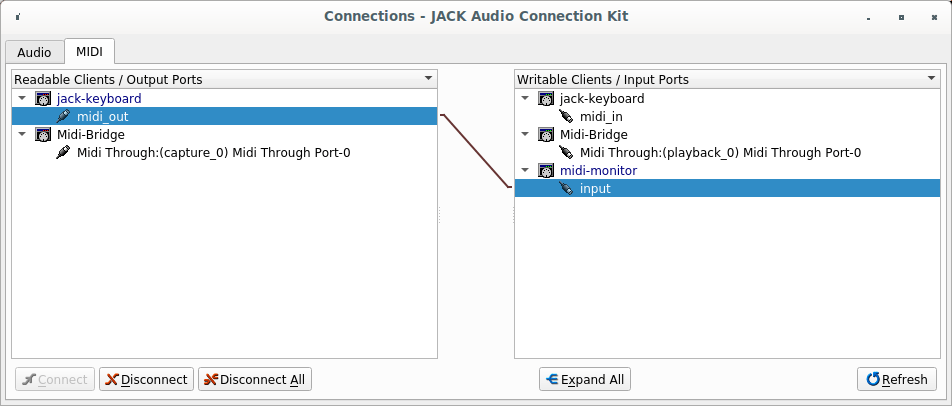
Now, if you click a key on the virtual keyboard of jack-keyboard, the note information should be shown in the terminal window of jack_midi_dump. Now that this works, you can try connecting your external MIDI keyboard to your computer and make the connection in qjackctl between the keyboard and the midi-monitor. Again, the notes should be shown in the terminal window. So, the MIDI input seems to be working.
Next, we set the sound synthesis based on the qsynth program. Make sure the setup of qsynth is as shown in the below figures:
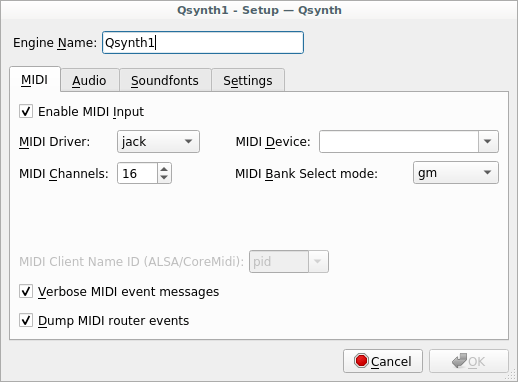
Note that above I previously had “alsa_seq” as the MIDI driver, but immediately as I switched this setting to “Jack”, the system no longer froze.
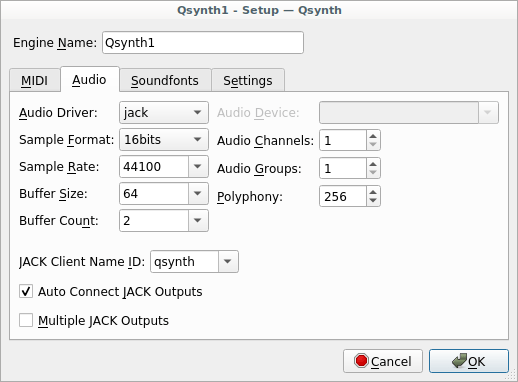
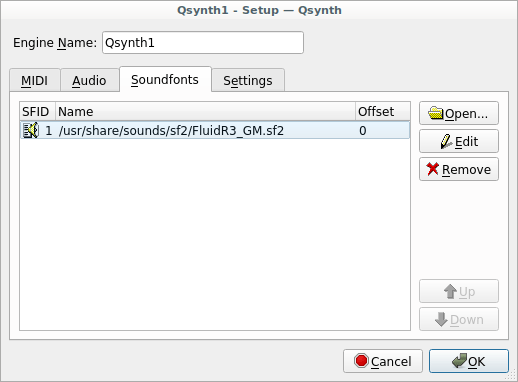
Now restart qsynth and connect in qjackctl a MIDI keyboard to the qsynth like in the below figure.
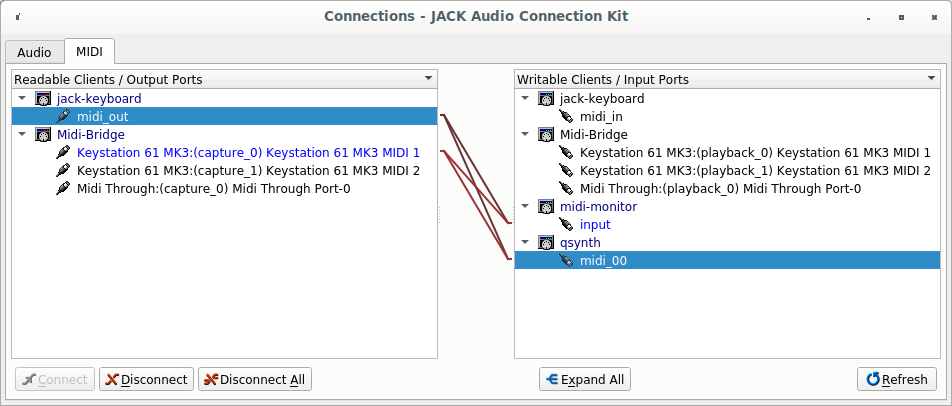
Now both the virtual and external MIDI keyboards should show note information on the jack_midi_dump and a sound should be played by qsynth. Note that even though the settings I described above work for me they may not be the optimal ones.
Note: always start qjackctl before starting qsynth, jack-keyboard or attaching an external MIDI keyboard. Conversely, before stopping a program or detaching an external MIDI keyboard, disconnect the connections from/to the program/device. Otherwise the programs may freeze and the volume control from the (computer’s) keyboard or from the desktop panel no longer works. This is however a minor defect compared to the earlier non-PipeWire system, and I will definately continue using PipeWire.
 Thoughts from the bottom of a well