I just purchased a Yubico Yubikey 5 NFC, a hardware authentication device that is plugged into a USB port. It can be used for signing in to your own machice or some web services such as GitHub. Often it is used as part of a multi-factor authentication scheme, so for instance signing in would require both the key to plugged in and a password entered. The Ubikey supports static passwords, one-time passwords and Universal 2nd Factor authentication, among other features. The Yubikey acts as a USB keyboard that automatically enters a password or other response for the user, when the button on the device is pressed. This allows using it without any installed drivers, since USB keyboards are often supported by default.
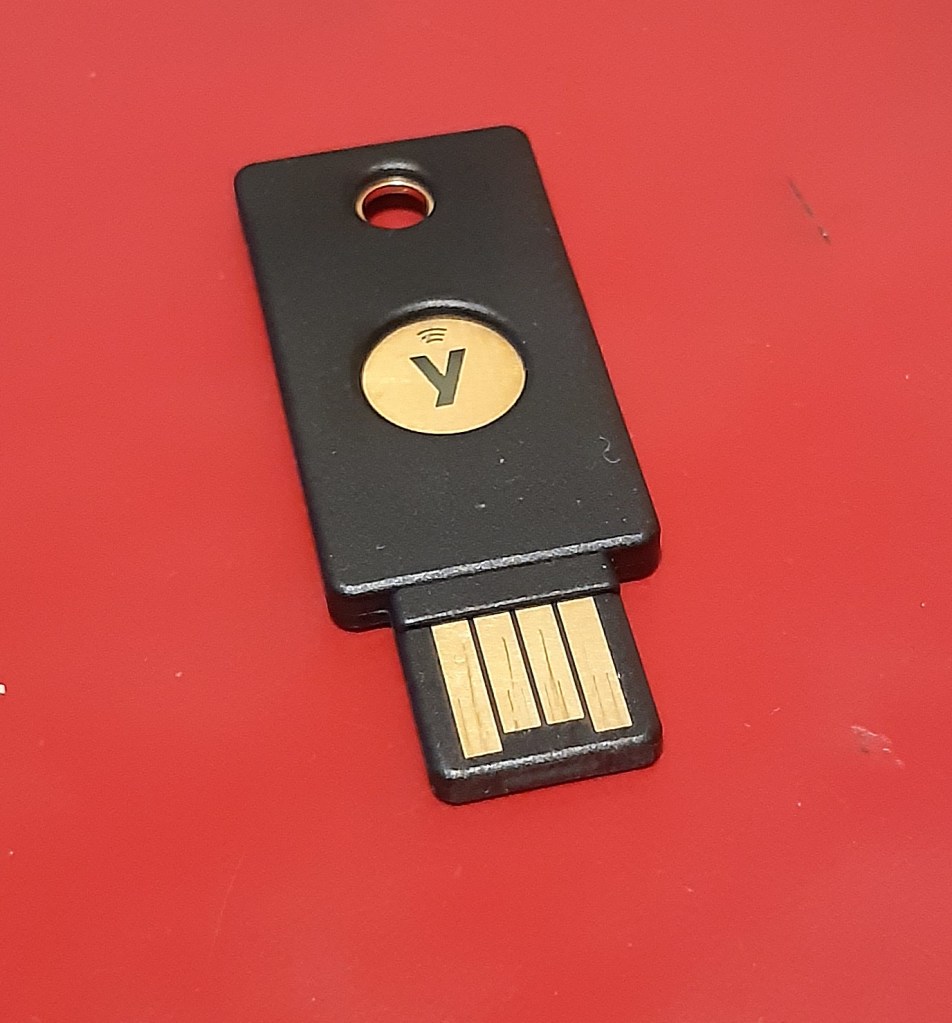
So far I have only tried using it for logging in on my own Linux machine with Ubuntu 20.04 distribution. This required installation of a few software packages and configuring PAM (Pluggable Authentical Modules) to support it. First I installed Yubikey manager with sudo apt install yubikey-manager. It contains the program ykman. You can ask for the basic information of the Yubikey by issuing command ykman info when the device is plugged in. Next, since I wanted to test the Universal 2nd Factor authentication feature, I installed the relevant packages with command sudo apt install pamu2fcfg libpam-u2f.
The U2F authentication is a public key based method, and in this case the private key is stored in the Yubikey and the public key is placed into a database either system-wide or for each user who wants to use the Ubikey. We try this for a single user, and add the public key to the database in file ~/.config/Yubico/u2f_keys. This is achived with the following commands
mkdir -p ~/.config/Yubico
pamu2fcfg > ~/.config/Yubico/u2f_keys
The u2f_keys file works similarly as the authorized_keys file of ssh, and can contain multiple keys, each on its own line. Note that the user must belong to group plugdev to be able to run the pamu2fcfg command. Next, we will configure PAM to allow signing in with the Yubikey.
Configuring PAM isn’t easy. It has multiple features and its syntax is complex. By misconfiguring it, it is easy to make the system totally open. Or totally closed, so that you have locked yourself out. It is a good idea keep a terminal window open with root logged in so that you can revert your changes to the configuration in case something goes wrong. Make sure that you can use su, sudo, etc before closing the root terminal window. If you still manage to lock yourself out, boot the machine with a live USB stick, and revert the PAM configuration.
With PAM you can define how the authentication works with programs like su, sudo and gdm. To make sure we won’t lock ourselves out, let’s try to modify configuration only for su, since I use that one rarely, and thus it won’t make the whole system unusable is misconfigured. Edit the file /etc/pam.d/su and line the following line just before the line which says @include common-auth
auth sufficient pam_u2f.so cue nouserok origin=pam://barrett appid=pam://barrett
Above, barrett is the name of my machine. This setting allows logging in with su either by touching the Yubikey if the device is plugged in, or if it isn’t then to log in the user must provide a password. This isn’t multi-factor authentication: to use it instead, you should change the sufficient part to required. The cue option causes the prompt “Touch the device” shown to the user. The option nouserok means that this line is ignored, if the Yubikey isn’t plugged in user is not found inside the authfile (u2f_keys) or the authfile is missing or malformed. Don’t use the nouserok option!
This is only fraction of what can be done with Yubikey and PAM. To modify PAM configuration, you should really read and understand the PAM manual pages, for instance pam(7), pam.conf(5), pam_unix(8) and pam_u2f(8). Further information about using Ubikey on Linux can be found from the archLinux wiki.
 Thoughts from the bottom of a well